

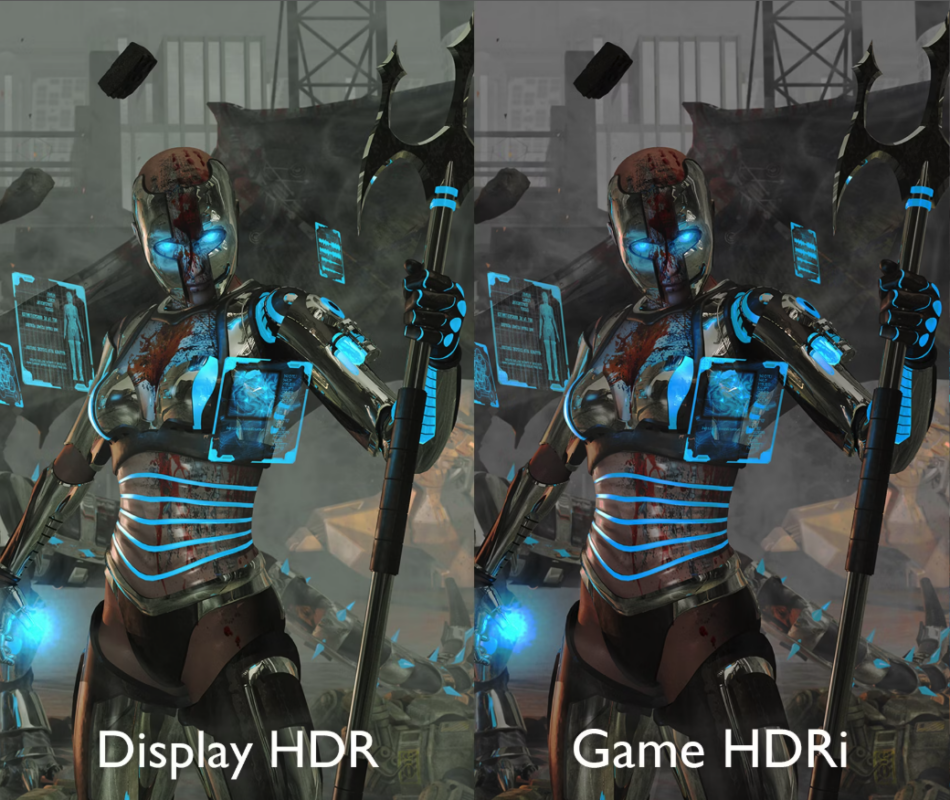
Ready to take your gaming to the next level with HDR (High Dynamic Range)? This tech can make colors pop, shadows deepen, and highlights dazzle, but only if you know how to turn it on. Whether you’re on a PS5, Xbox Series X, or PC, enabling HDR isn’t always automatic—it takes a few steps to get it running. Here’s a no-nonsense guide to flipping the HDR switch on your setup, so you can see games like Elden Ring or Forza Horizon 5 the way they were meant to be seen.
Step 1: Check Your Gear
Before you dive into menus, make sure your setup supports HDR. You’ll need:
- An HDR-Capable Display: A TV or monitor with HDR10, Dolby Vision, or VESA DisplayHDR support. Check the box or specs—models like the LG C4 OLED or Samsung QN90C are solid bets.
- HDR-Compatible Device: PS5, Xbox Series X|S, or a PC with a modern GPU (like an NVIDIA RTX 30-series or AMD RX 6000-series) that supports HDR output.
- The Right Cable: An HDMI 2.0 or 2.1 cable for consoles, or a DisplayPort 1.4 for PCs. Cheap cables might not cut it—grab a certified one.
Not sure if your gear qualifies? Rtings has a handy breakdown of HDR standards and compatibility.
Step 2: Enable HDR on Your Console
PlayStation 5
- Go to Settings > Screen and Video > Video Output.
- Under HDR, select On When Supported. If it’s grayed out, your TV or cable might not be HDR-ready.
- Adjust HDR Calibration (optional) to tweak brightness and contrast for your screen. Follow the on-screen sliders for best results.
- Launch an HDR game like Spider-Man: Miles Morales to test it—look for an HDR logo in the corner or richer visuals.
Sony’s official PS5 HDR guide has more details if you hit a snag.
Xbox Series X|S
- Head to Settings > General > TV & Display Options.
- Choose Video Modes and check Allow HDR10 and/or Allow Dolby Vision (if your TV supports it).
- Under 4K TV Details, confirm HDR is green-lit. If not, double-check your HDMI connection.
- Boot up Halo Infinite or another HDR title—the difference in lighting should be instant.
Microsoft’s Xbox HDR setup page is a lifesaver for troubleshooting.
Step 3: Turn on HDR on Your PC
- Update Your GPU Drivers: Grab the latest from NVIDIA or AMD to ensure HDR support.
- Open Windows Settings > System > Display.
- Click Windows HD Color Settings (only visible with an HDR display connected).
- Toggle Play HDR Games and Apps to On. If it’s missing, your monitor or GPU might not support HDR.
- Launch a game like Cyberpunk 2077—check its graphics menu for an HDR toggle, as some titles need it enabled in-game too.
For deeper tweaks, PC Gamer walks you through Windows HDR quirks.
Step 4: Activate HDR on Your Display
Your TV or monitor might not switch to HDR mode automatically. Here’s how to fix that:
- TVs: Go to your TV’s settings (e.g., Picture > HDMI Mode on Samsung or LG sets) and enable HDR Mode or Enhanced HDMI. On some models, it’s per-input, so select the HDMI port your console/PC uses. CNET has brand-specific tips.
- Monitors: Check the on-screen display (OSD) menu via physical buttons. Look for an HDR option—on something like the ASUS ROG Swift PG27UQ, it’s under Picture settings.
Step 5: Test and Tweak
Once HDR is on, fire up an HDR-supported game. Titles like Forza Horizon 5 (with its vibrant sunsets) or Resident Evil Village (with its creepy shadows) are great benchmarks. If colors look washed out or too dark:
- Calibrate: Use your console’s HDR calibration tool or Windows’ built-in HDR settings.
- Check Lighting: HDR shines in dim rooms—bright ambient light can dull the effect.
- Update Firmware: TVs and monitors often need patches for optimal HDR. Check the manufacturer’s site.
Troubleshooting Tips
- No HDR Option? Confirm your display and cable are HDR-ready. Swap cables if needed.
- Weird Colors? Ensure the game and device HDR settings match your display’s standard (e.g., HDR10 vs. Dolby Vision).
- Still Not Working? Restart everything—sometimes it’s that simple.
The Payoff
With HDR enabled, you’ll notice the difference immediately—brighter explosions, subtler gradients, and a world that feels alive. It’s not just about looks; in games like Call of Duty: Black Ops 6, better contrast can even help you spot enemies. So, take five minutes, follow these steps, and unlock the full potential of your setup. Your eyes will thank you.