

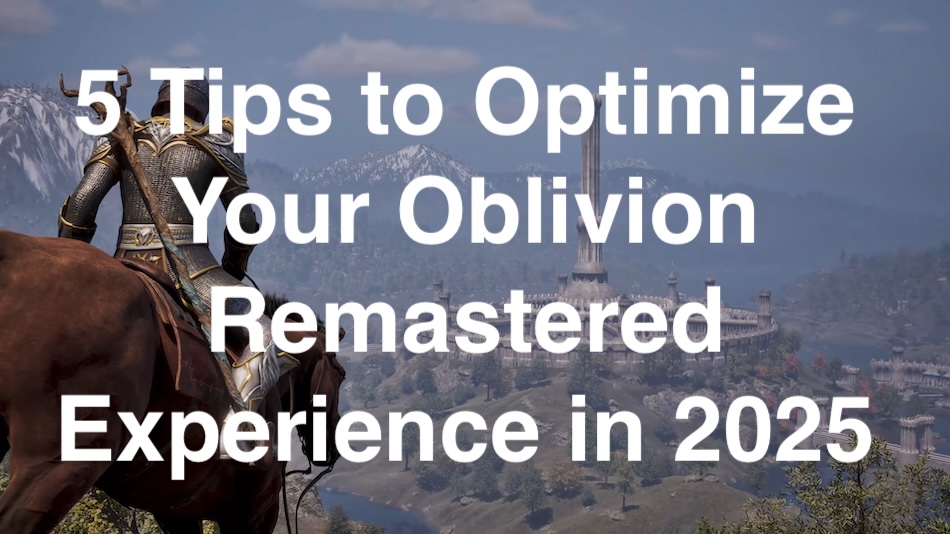
The Elder Scrolls IV: Oblivion Remastered has taken the gaming world by storm in 2025, bringing the beloved 2006 classic into the modern era with Unreal Engine 5’s stunning visuals and revamped mechanics. However, with great power comes great responsibility—players are reporting performance hiccups, save file crashes, and optimization challenges. To help you conquer Cyrodiil without frustration, we’ve compiled the top 5 tips to optimize your Oblivion Remastered experience. Whether you’re a veteran adventurer or a newcomer, these tips will boost performance, reduce crashes, and enhance your journey. Perfect for anyone searching for Oblivion Remastered fixes, this guide is your ticket to a smoother gameplay experience.
1. Update Your Graphics Drivers for Peak Performance
One of the most common reasons for stuttering, crashes, or low FPS in Oblivion Remastered is outdated GPU drivers. The game’s Unreal Engine 5 demands the latest drivers to handle its ray-tracing and high-resolution textures.
- NVIDIA Users: Download the latest driver (e.g., Hotfix Driver 576.15 or newer) from NVIDIA’s website or GeForce Experience. Disable NVIDIA Overlay to prevent conflicts.
- AMD Users: Grab Adrenalin Edition 25.4.1 or later from AMD’s site. Reset graphics settings to default and disable Anti-Lag, Radeon Boost, and Chill.
- Intel Users: Ensure your Arc or integrated GPU drivers are up to date via Intel’s Driver & Support Assistant.
After updating, restart your PC and launch the game. This simple step can resolve up to 60% of performance issues, based on community reports from Steam and Reddit.
2. Tweak Graphics Settings for Smooth Gameplay
Oblivion Remastered looks gorgeous, but its high-fidelity graphics can tax even modern PCs. If you’re experiencing lag or crashes during combat or loading screens, lowering specific settings can make a huge difference.
- Quick Fix: In the game’s main menu, go to Graphics/Display and select the Medium or Low preset. This reduces strain on your GPU and CPU.
- Advanced Tweaks:
- Disable Ray Tracing and Reflections for a significant FPS boost (especially on RTX 3060 or RX 6700 GPUs).
- Set Shadows to Low or Off to avoid stuttering in open-world areas like the Imperial City.
- Cap FPS at 60 to stabilize loading screens and prevent crashes.
- Turn off V-Sync to reduce input lag, but enable it if you notice screen tearing.
Pro Tip: If you’re on a mid-range PC (e.g., Ryzen 5 5600X, 16GB RAM), stick to 1080p resolution with Medium settings for a consistent 60 FPS.
3. Fix Save File Crashes with These Workarounds
Save file crashes are a hot topic on forums, with many players reporting issues when loading autosaves or quicksaves. Here’s how to stabilize your saves:
- Backup Saves: Always back up your save files from C:\Users\[YourUsername]\Documents\My Games\Oblivion Remastered\Saved\SaveGames. This prevents permanent loss if a save corrupts.
- Manual Saves Over Quicksaves: Avoid relying on quicksaves or autosaves, as they’re prone to corruption. Create manual saves frequently and rotate between multiple slots.
- Check Save Folder: Ensure the SaveGames folder exists in the path above. If it’s missing, create it manually: My Games > Oblivion Remastered > Saved > SaveGames.
- Disable Steam Cloud: Go to Steam > Library > Right-click Oblivion Remastered > Properties > General > Uncheck “Keep games saves in the Steam Cloud.” Cloud sync can corrupt saves during uploads.
If a specific save crashes, try loading an earlier one. Bethesda is reportedly working on a patch for save-related bugs, so keep an eye on their support page.
4. Disable Overlays and Background Apps
Overlays from Steam, Discord, or MSI Afterburner can interfere with Oblivion Remastered, causing crashes or FPS drops. Here’s how to turn them off:
- Steam: Library > Right-click Oblivion Remastered > Properties > Uncheck “Enable Steam Overlay while in-game.”
- Discord: User Settings > Game Overlay > Toggle off “Enable in-game overlay.”
- Xbox Game Bar: Windows Settings > Gaming > Xbox Game Bar > Toggle off.
- Other Apps: Close MSI Afterburner, GeForce Experience, or any RGB control software to free up system resources.
For Game Pass players, ensure the Xbox App isn’t running in the background while playing. This can reduce CPU usage by up to 10%, according to user tests on Reddit.
5. Address Specific Bugs (Alchemy and Location Crashes)
Oblivion Remastered has a few pesky bugs that can derail your adventure. Two of the most reported issues are:
- Alchemy Bug: Excessive use of the alchemy system (e.g., crafting potions repeatedly) can corrupt saves or cause crashes. Limit alchemy sessions to small batches and save manually afterward. A patch is expected to address this, but no ETA as of May 2025.
- Location-Based Crashes: Areas like Oblivion gates or the sewers may crash due to shader compilation or memory leaks. If stuck, load an earlier save or fast-travel to a different location. For persistent issues, lower Texture Quality to Medium.
- We also previously covered the Battle of Kvatch bug.
Bonus Tip: Stay Updated with Community Fixes
The Oblivion Remastered community is active on platforms like Reddit, Steam Discussions, and Bethesda’s forums. Check these for the latest workarounds, such as deleting the NVIDIA DLSS file (sl.pcl.dll) in Steam\steamapps\common\Oblivion Remastered\Engine\Plugins\Marketplace\nvidia\DLSS\Streamline\Binaries\ThirdParty\Win64 to fix NVIDIA-specific crashes. Always back up files before modifying.
With these five tips, you’ll be well-equipped to tackle The Elder Scrolls IV: Oblivion Remastered without the headaches of crashes or performance issues. From driver updates to save file management, these optimizations ensure you can focus on slaying Daedra and exploring Cyrodiil in glorious 4K. Have a tip we missed? Drop it in the comments below, and check back for updates as Bethesda rolls out patches.